The two access levels
Opens the survey and the results dashboard, filters and reads responses, and exports the data.
Cannot edit a question, publish or unpublish, send invites, or delete anything.
Give this to a stakeholder who wants the findings, not the build.
Everything a viewer can do, plus editing questions and settings, publishing and unpublishing, sending the survey out by email, and running the AI analyst.
Cannot invite other people, change anyone's role, or delete the survey. Those stay with you.
Give this to whoever is actually building or fielding the survey with you.
In detail
The owner is whoever created the survey. Ownership does not move — see the warning below about duplicates.
| Owner | Editor | Viewer | |
|---|---|---|---|
| Read responses, filter, and export | Yes | Yes | Yes |
| Read AI analysis that has already been run | Yes | Yes | Yes |
| Duplicate the survey into their own account | Yes | Yes | Yes |
| Edit questions, logic and settings | Yes | Yes | No |
| Publish and unpublish | Yes | Yes | No |
| Add recipients and send invites | Yes | Yes | No |
| Run the AI analyst | Yes | Yes | No |
| Delete individual responses | Yes | Yes | No |
| Invite people, change roles, remove access | Yes | No | No |
| Delete the survey | Yes | No | No |
Where the Share button is

Inviting someone
- 1Open the survey from My Surveys and click Share in the editor toolbar
It sits just right of Save now. This is the editor toolbar — not the Share button on the survey card, which copies the public link for respondents instead.
- 2Enter their email and choose Editor or Viewer
The role sits in the dropdown next to the address. You can change it later without re-inviting.
- 3Click Send invite
They get an email naming you and the survey. The link in it is good for 14 days.
- 4They click the link while signed in
If they do not have an account yet, they are walked through creating one and land on the survey afterwards. Accepting is what grants access — nothing changes for them until they do.
What the Share dialog shows you
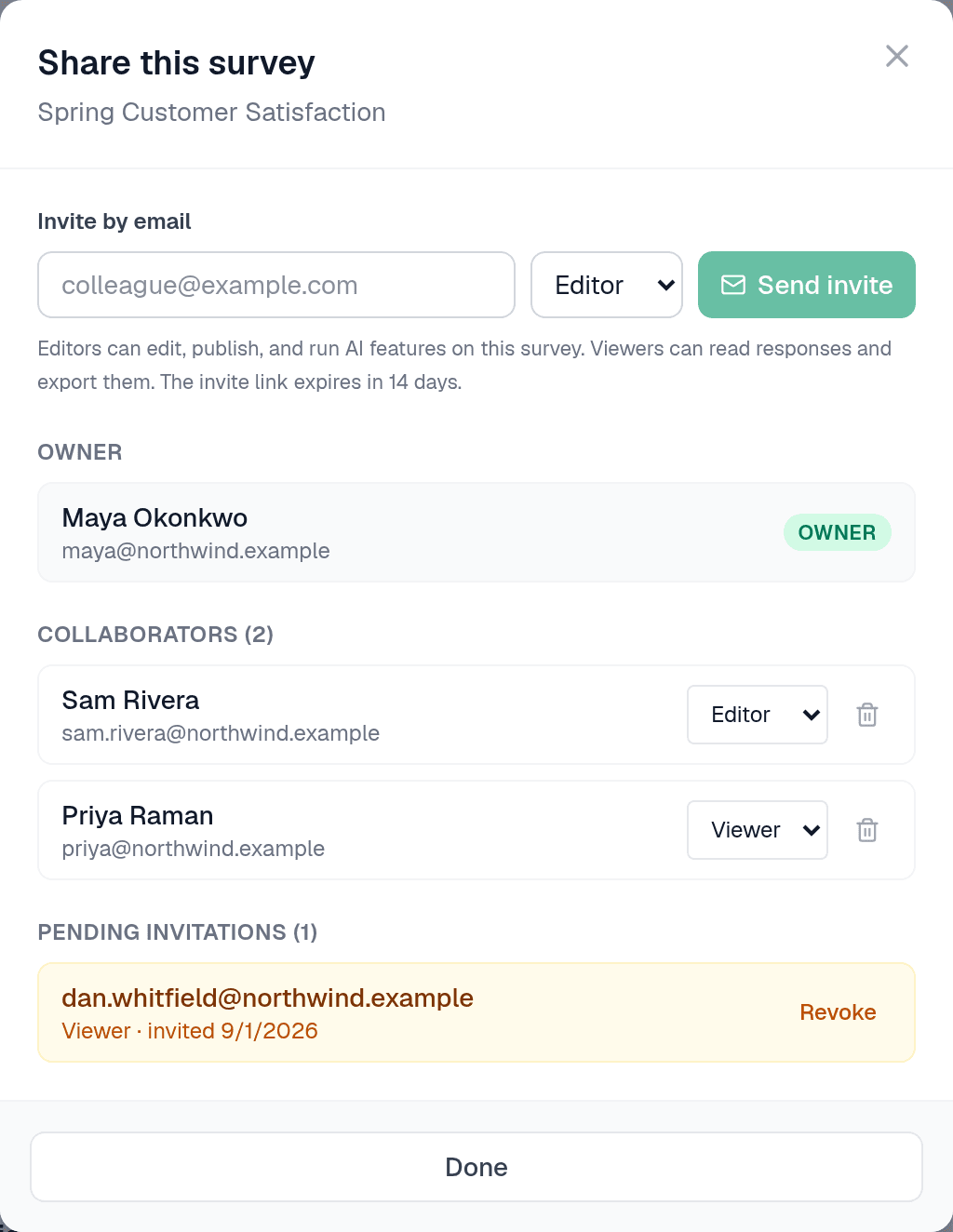
The check is against the survey owner's plan, so a colleague on the Free plan can collaborate on your survey at either access level — they just cannot invite people to surveys of their own.
On Free the Share button is visible but disabled, reading "Upgrade to Pro to invite collaborators".
There is no per-seat charge and no seat count. Invite the people who need the survey.
Managing access afterwards
All of this lives in the same Share dialog, and all of it is owner-only.
- Change someone's role — Switch the dropdown next to their name between Editor and Viewer. It applies on their next request — no re-invite, no email.
- Remove someone — The bin icon next to their name. Access ends immediately.
- Chase or cancel an invitation — Anyone who has not accepted yet shows under Pending invitations with the date and role, and a Revoke link. Inviting the same address again replaces the pending invite and issues a fresh 14-day link, which is how you re-send one that got lost.
- If they are already a collaborator — The invite is refused and tells you the role they already hold — change it from the list rather than inviting again.
Anyone with access — editor or viewer — can duplicate a survey, and the copy lands in their account rather than the original owner's. That is a fork, not a share: the original owner will not see the copy on their dashboard, and changes made to it never reach the original.
If you are working on somebody else's survey and want your changes to reach them, edit theirs.
Collaborators are colleagues working on the survey. The people answering it never need an account and are never invited this way — they get a public link or an email invite from the Send dialog.
See “Sending your survey to respondents” for that side of it.
When access ends
Deleting a survey removes its collaborators and any outstanding invitations along with it. An unaccepted invitation simply expires after 14 days and grants nothing.