First, which kind of sharing is this?
A public link, or an email invite from the Send dialog.
Respondents never need an account and never see your dashboard.
That is this guide.
An invitation from the Share dialog, at view or edit access.
They get an account and work on the survey with you.
See “Sharing a survey with a colleague”.
First, find the survey

The buttons on a survey card
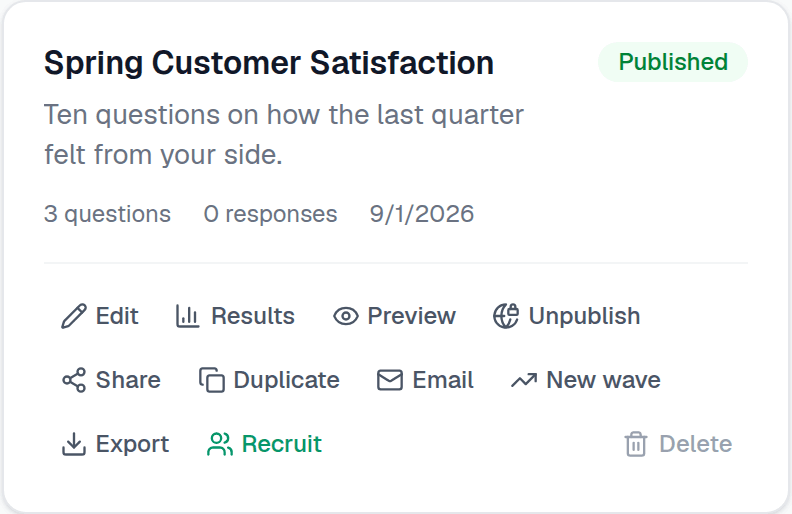
Sharing a link
Fastest route, and the one to use for Slack, an intranet page, a printed QR code, or a social post.
- 1Click Share on the survey card in My Surveys
The public link is copied to your clipboard. If the survey was not published yet, this publishes it first, so the link you just copied actually works.
- 2Check it yourself with Preview
Preview opens the survey as a respondent sees it, in a new tab. Nothing you enter in preview is saved or counted.
- 3Send it however you like
Anyone with the link can respond, and they can respond more than once unless you have limited that in survey settings.
Sending to a list by email
Use Send on the survey card — again, on My Surveys — when you want to know who has and has not replied.
- 1Publish the survey
Invites to an unpublished survey land on an error page, so Send invites stays disabled until you publish. A closed survey blocks sending too — reopen it first.
- 2Paste your recipients and click Add to list
One address per line, comma-separated, or a column copied straight out of a spreadsheet. Bad rows are reported individually with the original text, so one typo in a 120-row paste does not reject the lot, and addresses already on the list are skipped rather than duplicated.
- 3Click Send invites
Everyone on the list who has not been invited yet gets the survey link. You can add more people later and send again — nobody is invited twice.
- 4Chase with Remind non-responders
Only people who have not responded are contacted.
The Send dialog
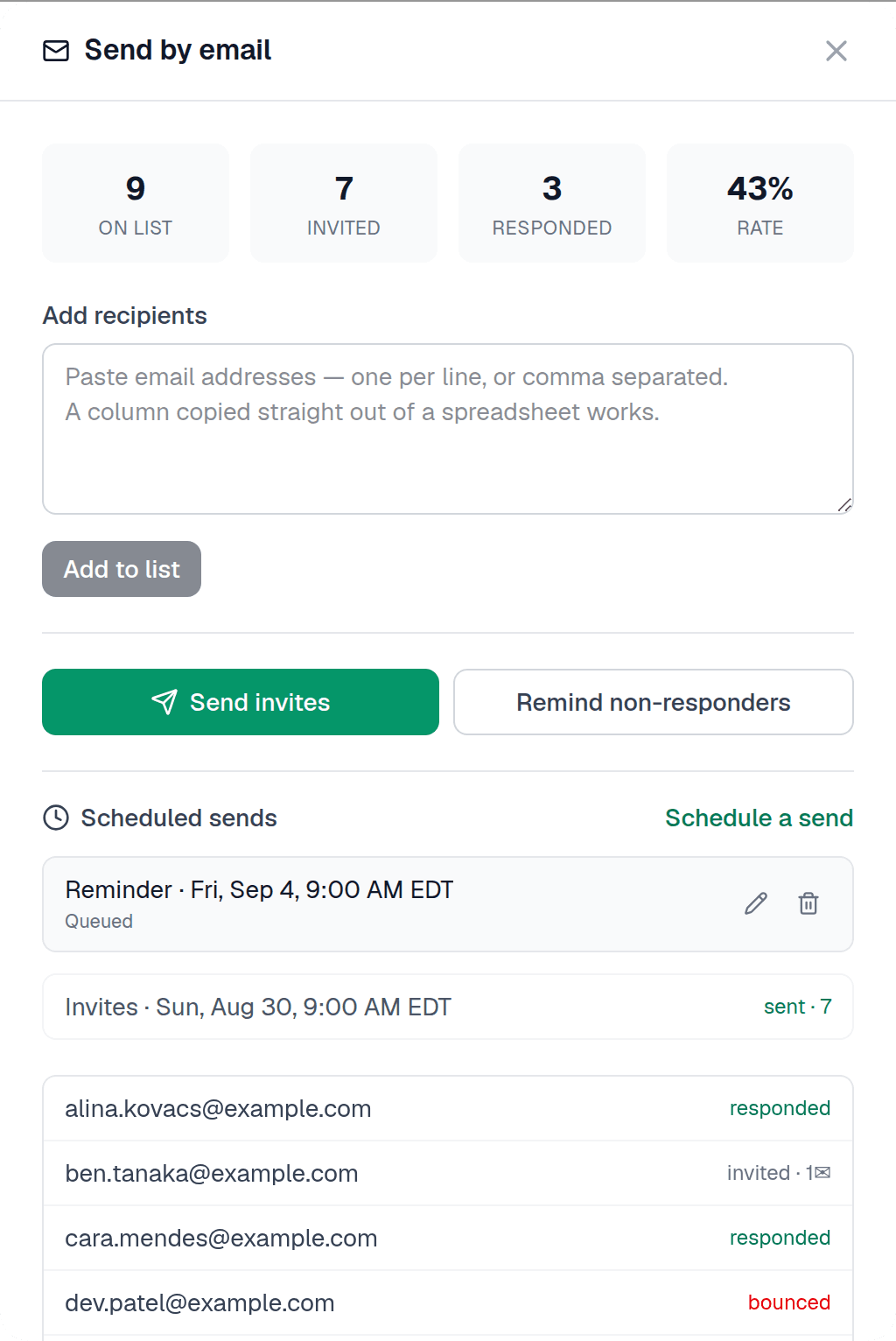
What the status next to each name means
| Status | Meaning |
|---|---|
| Not sent | On your list, but no invite has gone out yet. |
| Invited | The invite was sent. A ✉ count next to it is the number of reminders they have had. |
| Responded | They have submitted. Reminders skip them from here on. |
| Bounced | The address rejected the mail. Fix it and re-add, or drop it. |
| Unsubscribed | They opted out. They are never contacted again about this survey. |
The same dialog can queue a send for a date and time you choose, in the time zone you mean it in, and you can cancel or move it right up until it fires. See “Scheduling a send for later”.
The reminder rules
Reminders are deliberately hard to over-use — an inbox that gets nagged stops opening anything you send.
- Non-responders only — Anyone who has responded, bounced or unsubscribed is skipped automatically.
- Two per person, maximum — After a second reminder that person is done.
- 24 hours apart — A reminder sent sooner than a day after the last one is held back.
The invite token is never written to the response. Response tracking is a separate record that marks a recipient as having replied, and the time is deliberately coarsened so the two cannot be lined up by timestamp on a quiet survey.
You can chase non-responders without being able to open somebody's individual answers.
If the list is smaller than the survey's anonymity floor — 5 people by default on an anonymous survey, 3 on a multi-rater one — you see the counts but not who is who. On a list that small, knowing who has responded plus reading the responses would identify them.
Add more people to the list and the per-person view comes back.
Sending limits
These are not about cost — they exist because distribution shares a mail quota with password resets, email verification and collaboration invites. A runaway list would stop those working.
- Per survey — 2,000 recipients.
- Per account, per month — 5,000 sends, counted across all your surveys.
Who the email comes from
Invites send from our verified domain with your name and your reply-to address, rather than from your own domain. Sending as your domain would require DKIM and SPF verification first, which would block your first send behind a DNS change.
Replies come to you. Bounces and complaints are handled automatically to protect deliverability for everyone.
Answers autosave as people go, so a dropped connection or a closed tab does not wipe their progress — if they come back within 7 days they pick up where they left off. Drafts do not count toward your response total, and ones left untouched for more than 7 days are marked abandoned so your dashboard stays clean.
If you do not have your own list
Buy completes from the research panel instead. It is pay-as-you-go, from 10 completes up, with targeting on demographics and behaviour — see “Using the research panel”.